
My Tickets in Legale: request and track support in one place
My Tickets brings your organization’s requests, follow-ups and coordination tasks together in Legale. Each ticket holds a subject, a description, a priority and the conversation, so everyone involved follows the same thread instead of scattering context across separate messages.
My Tickets or Support: which one to use
- My Tickets is for coordinating requests and conversations within your organization’s processes, for example following up on a document review.
- Legale Support is for technical or platform questions, for example when a feature isn’t working. The Support button in the header opens the Legale support panel directly.
Before you start
- My Tickets isn’t enabled by default. If you don’t see it in your menu, ask your administrator to turn it on.
- For individual users, the module has an additional cost on top of the plan. For companies, it is offered as a paid service separate from the main plan.
- Before creating a ticket, be clear about who is involved, the topic, how urgent it is and which supporting files you need.
How to create and follow a ticket
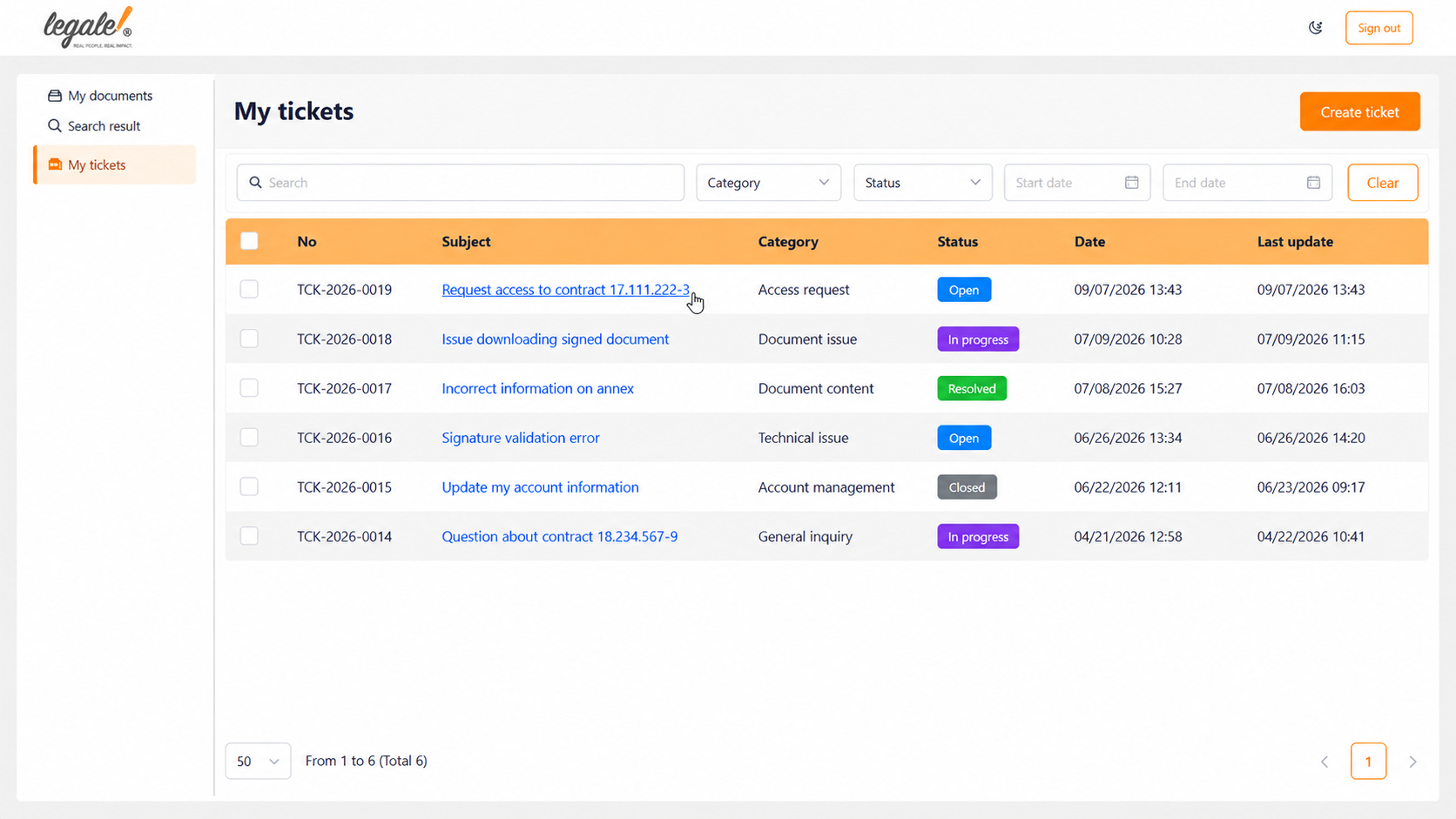
- Open My Tickets from the left menu. You can search and filter by status, priority or date range.
- Create the ticket with the Create ticket button, which is also in the toolbar of My documents. Fill in the category and subcategory, the priority (low, medium, high or urgent), the subject and the description. Attach files if needed: up to 10 per ticket. Then send it.
- Review the details by clicking the subject or View details: you’ll see the number, status, priority, category, description, attachments and the conversation history. View details is read-only.
- Follow the conversation in the ticket chat with the person handling the request. Keep clarifications and progress in that same ticket.
- Resolve or close: when the work is done, record the outcome and mark the ticket as resolved, or close it when the conversation should end.
Each ticket moves through the statuses open, in progress, resolved and closed, so you always know where a request stands.
How My Tickets has changed
- August 2025: My tickets got a new name and icon, the Create ticket button moved to the toolbar, and the Support button in the header opens Legale support.
- October 2025: clicking My Tickets opens the chat to create or manage tickets, and the page shows two charts: my tickets per month and team tickets per month.
- November 2025: a new interface with the same functions as the main Tickets module, such as resolve, close and view details, showing each ticket’s priority, status, assigned user and date.
- April 2026: files can be attached when creating a ticket.
- October 2026: a full redesign in the Portal Viewer, with built-in chat, a new window to create tickets and up to 10 attachments per ticket, also when creating them from Legale.
Tips for better follow-up
- Give each ticket a specific subject.
- Include enough context for the other person to act.
- Choose a priority that reflects the real urgency.
- Attach only the files you need.
- Keep updates in the same conversation.
- Record the outcome before resolving or closing the ticket.
Frequently asked questions
I don’t see My Tickets in the menu. What should I do?
Ask your administrator to check whether the module is enabled for your account.
How many files can I attach to a ticket?
Up to 10 per ticket. You can select several at once and remove the ones you don’t need before sending.
What’s the difference between resolving and closing a ticket?
You mark it as resolved when the requested work is done, and you close it when the conversation should end.
The help center guides My Tickets and how to create a ticket in Legale (in Spanish) include screenshots of each step.